
SupaDay works on the phone in your pocket, the tablet at the front desk and the computer by the register. It's one account everywhere, so a booking made on one device shows up on all the others.
Get the app on iPhone
- On your iPhone, open the App Store.
- Search for SupaDay, or open the App Store link on supaday.app/apps.
- Tap Get to download it.
- Open SupaDay and sign in with the email and password you use on the website.
Get the app on Android
- On your Android phone or tablet, open Google Play.
- Search for SupaDay, or tap the Google Play button on supaday.app/apps.
- Tap Install.
- Open SupaDay and sign in with your usual email and password.
Use the app to check your schedule, see new bookings as they come in and handle changes from anywhere. Staff who have their own login sign in the same way to see their own bookings.
Install the desktop app at the front desk
The desktop app opens SupaDay in its own window, like any other program, so nobody closes the calendar by accident with the rest of their browser tabs. It works in Chrome or Microsoft Edge on Windows or Mac.
- On the front-desk computer, open supaday.app/apps in Chrome or Edge.
- Scroll to SupaDay Desktop App and click Install SupaDay. (It may say Preparing install… for a few seconds first.)
- Your browser asks you to confirm. Click Install.
- When it says SupaDay is installed, open it from your Start Menu, Dock or desktop and sign in.
No download file is involved. If the button doesn't appear, SupaDay may already be installed on this computer, or you're in a different browser. In Chrome you can also click the install icon in the address bar, or open the menu and choose Install SupaDay.
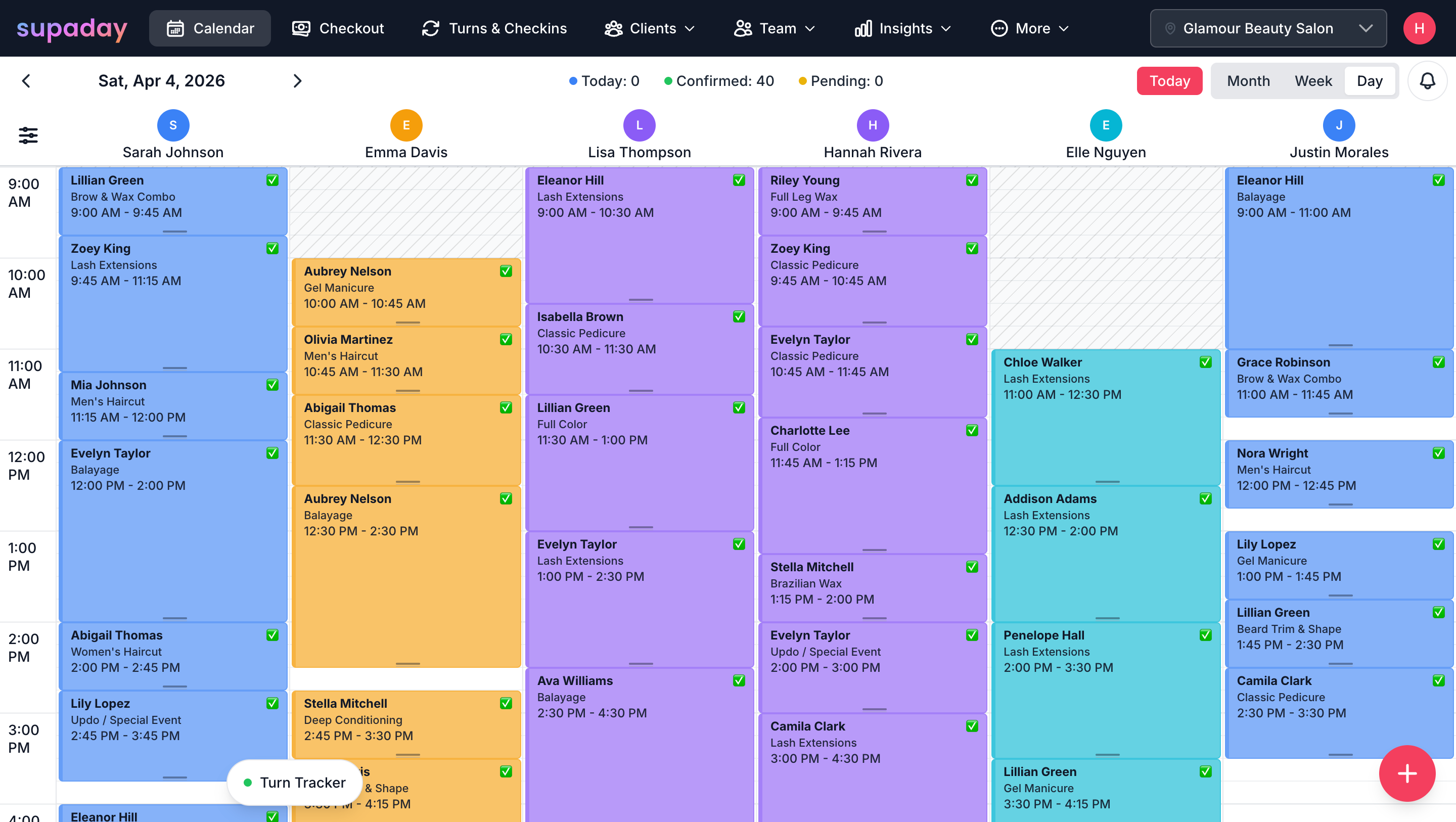
On a front-desk tablet, the calendar shows every staff member's day at a glance.
Use any browser instead
You don't have to install anything. Sign in at supaday.app from any browser on a laptop, tablet or a stylist's own phone and everything works the same.
What to do in a browser, not the app
A few things only work in a web browser:
- Creating a new salon account. Sign up at supaday.app/register-team, then sign in to the app.
- Billing. Choosing a plan, changing your card, invoices and cancelling are done at supaday.app/settings/billing. See billing and plans.
- Connecting Stripe. In the app, the bank account step opens your browser to finish.
Tip: Your clients never need to install anything. They book, check in and manage their appointments from their phone's web browser.
FAQ
Frequently asked questions
Is there a SupaDay app for iPhone?
Yes. Download SupaDay from the App Store and sign in with your SupaDay email and password to see your schedule, new bookings and appointments.
Is there a SupaDay app for Android?
Yes. Get SupaDay on Google Play for Android phones and tablets, and sign in with the same account you use on the website.
Why can't I subscribe or change my plan in the app?
Billing is only available in a web browser. Open supaday.app/settings/billing on your phone or computer browser and sign in. Any plan you choose there works in the app straight away.
Do my clients need to download the app?
No. Clients use your booking link and check-in page in their phone's browser. The SupaDay app is for you and your team.
The Install SupaDay button never shows up. What should I do?
Make sure you're using Chrome or Edge. If SupaDay is already installed, open it from your Start Menu or Dock. Otherwise try the install icon in Chrome's address bar, or keep using SupaDay in your browser.
Related guides
Still stuck?
Email us and a real person will reply, usually the same day.